
Appearance
Windows Server 2012 R2 Evaluation Image
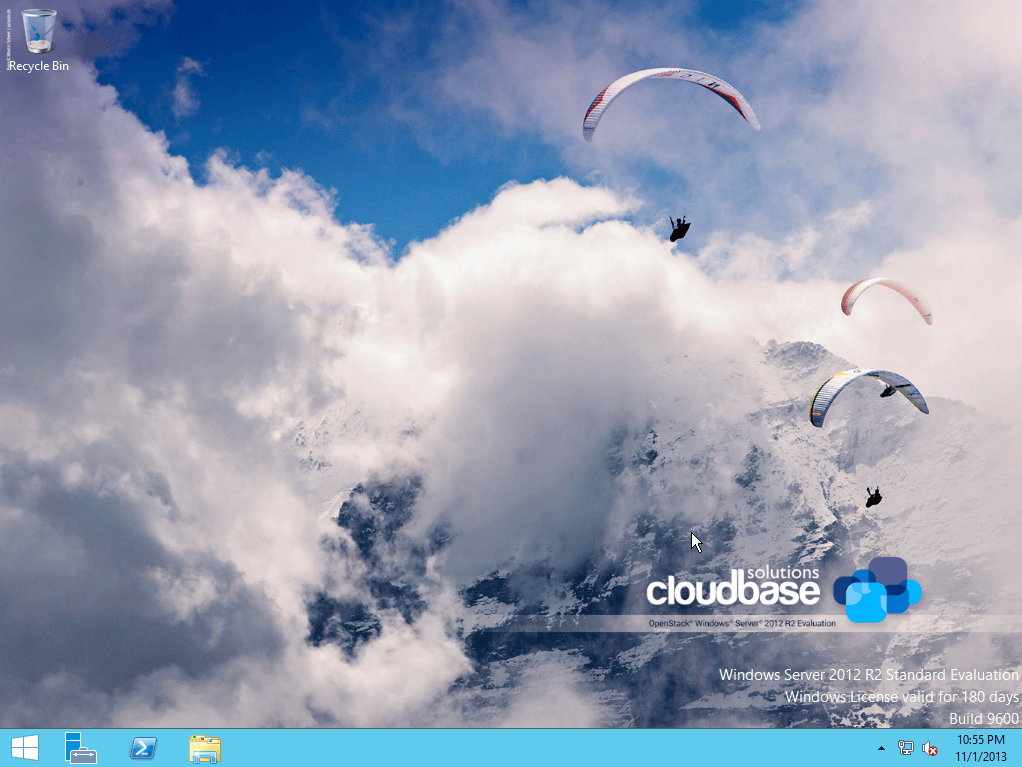
Our official OpenStack Windows Server evaluation images got updated to the freshly released 2012 R2 version just in time for the Hong Kong summit!
Full support for OpenStack Havana is included for KVM and Hyper-V. We plan to release images for additional hypervisors as well quite soon (XenServer / XCP and ESXi / vSphere).
The images include the latest version of Cloudbase-Init, with new features and a fix for an issue that prevented to retrieve, in some circumstances, the Admin user’s password in the previous Grizzly 2012 image.
How to deploy the images in OpenStack
The first thing consists in downloading an image and uploading it in Glance.
For KVM:
| 1 2 3 | gunzip -cd windows_server_2012_r2_standard_eval_kvm_20131031.vhd.gz | \ glance image-create --property hypervisor_type=qemu --name "Windows Server 2012 R2 Std Eval" \ --container-format bare --disk-format qcow2 --property os_type=windows |
|---|
For Hyper-V:
| 1 2 3 | gunzip -cd windows_server_2012_r2_standard_eval_hyperv_20131031.vhd.gz | \ glance image-create --property hypervisor_type=hyperv --name "Windows Server 2012 R2 Std Eval" \ --container-format bare --disk-format vhd |
|---|
Now just boot the image as usual, providing a keypair, which is needed to retrieve the password later.
| 1 | nova boot --flavor 2 --image "Windows Server 2012 Std Eval" --key-name key1 MyWindowsInstance |
|---|
Once the image has been booted, you can get the Admin user’s password with:
| 1 | nova get-password MyWindowsInstance /path/to/your/keypairs/private/key |
|---|
Please note that the HTTP metadata service must be available in order for this feature to work. If you see a blank password, most probably the HTTP metadata service was not available when the password was set or the instance has been booted without a keypair assigned.
How to access the image via Remore Desktop Protocol (RDP)
First, make sure to add the RDP TCP port (3389) to a security group, for example:
| 1 | nova secgroup-add-rule default tcp 3389 3389 0.0.0.0/0 |
|---|
Assign a floating IP to your instance and point your RDP client to it. When prompt for credentials, provide “Admin” and the password retrieved at the previous step.
Beside Windows, there are official Microsoft RDP clients available for OS X, iOS and Android.
On Linux, FreeRDP is by far the best available choice as it’s based on the official Microsoft open RDP specifications
How are those images created?
Here’s a post with a detailed explanation!